← FlexAPI Documentation / API Calls / SubmitDocument
The SubmitDocument method is the core of any SIGNIX integration. It submits a set of documents for secure delivery to, and optional viewing and signature by, a set of end users (signers / parties) under a single cover. Note that despite the term 'Document,' the call is actually used to start an entire SIGNiX transaction. It can be used for multiple documents.
After the SIGNiX system successfully receives the set of submitted documents, it performs additional checks and then may send an email to the first party with a link to click to pick up the documents in order to sign and/or view them (depending on integration use case).
Because the request XML for SubmitDocument is large, an overview of its structure is given below. Only elements that contain other elements are shown here. As in the notation for regular expressions, '+' indicates the element appears once or more than once, and '|' indicates a choice of alternatives. Parentheses indicate optional elements, and indentation indicates embedding.
SubmitDocumentRq
  CustInfo
  Data
    (MemberInfo)+
    (Form)+
      (SignatureLine | InitialLine | View)+
The detailed structure of the request is specified in the XML schema file. An annotated example of the request XML follows. Sample values are placeholders (YOUR_*), and the comments in the sample summarize the field notes in the section below it.
Demo. It is required on SubmitDocument (and only there) and takes yes or no. If it is missing, the error is a vague "Required CustInfo parameter not specified" that does not name the field. Sending Demo on DownloadDocument, GetAccessLink or ConfirmDownload is a schema error. Note that the Demo element is required regardless of environment.Data the order is: TransactionID and the descriptive elements, SuspendOnStart, ClientPreferences, MemberInfo, MeetingInfo, then Form. Inside MemberInfo, Service comes before MobileNumber. A wrong order produces schema errors that do not mention order.SelectOneClick, one PDF and SuspendOnStart set to no working first, then add features one at a time.<?xml version="1.0" ?>
<SubmitDocumentRq xmlns="urn:com:signix:schema:sdddc-1-1">
<CustInfo> <!-- Occurs once only -->
<!-- Assigned by SIGNiX when the Client is set up. All case sensitive. -->
<Sponsor>YOUR_SPONSOR</Sponsor>
<Client>YOUR_CLIENT</Client>
<UserId>YOUR_USER</UserId>
<Pswd>YOUR_PASSWORD</Pswd>
<!-- Identifies the billing party. Appears on SIGNiX billing reports. Optional, but recommended
when different integrator clients may be billed per transaction. Can be left blank.
Max length 50. -->
<BillingRef>SmithRealty</BillingRef>
<!-- Workgroup that will have access to this transaction. Case-specific. Optional, defaults to "SDD". -->
<Workgroup>YOUR_WORKGROUP</Workgroup>
<!-- Required. 'yes' for demo/test, 'no' for a real transaction. Must be 'yes' on a demo/test
server (see Web Service URL). Demo identities and documents are flagged to avoid confusion
with real ones. -->
<Demo>yes</Demo>
<!-- Optional. Number of days after ConfirmDownload that the documents of a completed
transaction are deleted. Cannot be zero. SIGNiX recommends keeping it under 180 days.
Takes effect only if DownloadDocument sets UseConfirmDownload to true, ConfirmDownload is
called, and SIGNiX has enabled document deletion for your account (otherwise it is
ignored). Valid only in CustInfo. See Retention and deletion on the DownloadDocument
page. -->
<DelDocsAfter>90</DelDocsAfter>
<!-- Message added to the pickup email. Not the whole email body, just a specific message to the
signer. Length 1..10000. Allowed characters: a-zA-Z0-9 ' , . - _ : ( )
NOT allowed: $ # @ ! % * & ^ / and backslash. -->
<EmailContent>Your loan documents are available.</EmailContent>
</CustInfo>
<Data> <!-- Occurs once only -->
<!-- Required. A unique identifier you choose for this set of documents. Exactly 36 characters.
Resubmitting an existing TransactionID returns SC_DOCUMENT_SET_ALREADY_SUBMITTED
(see the notes below the sample). -->
<TransactionID>aefd45aa-6a36-4ab5-8cc8-4dc6e895fa21</TransactionID>
<!-- Required. Length 1..100. Title of the transaction, shown on reports, audit trails and in the
Document Center / Dashboard, so make it identifiable among other transactions (for example,
include the primary party's name). Avoid generic titles like "Car Loan". Same character
rules as EmailContent. -->
<DocSetDescription>Car Loan: John Smith</DocSetDescription>
<!-- Optional, max length 255. File name used when the end user downloads the whole set
(Download All). Returned by DownloadDocument if provided. Should end in .zip -->
<FileName>J-Smith_02242005_032557.zip</FileName>
<!-- Required, max length 50. Notified when the set is completed or needs attention. Also ties the
transaction to a user for license billing, so use a unique address for each submitter user.
While testing, use a real address, not a fake one. -->
<SubmitterEmail>YOUR_SUBMITTER_EMAIL</SubmitterEmail>
<!-- Required, max length 50 total (30 per name part). Used for license billing. Must reference a
single person, in the format FirstName LastName separated by a space. Not a single word and
not a combination of names. -->
<SubmitterName>Samuel Submitter</SubmitterName>
<!-- Optional, max length 1000. Shown in emails and in signing UI popups. If omitted, SIGNiX uses
"If you have any questions, please contact your representative at [SubmitterEmail]." -->
<ContactInfo>If you need assistance, call 1-800-000-0000.</ContactInfo>
<!-- Required. Legacy parameter. -->
<DeliveryType>SDDDC</DeliveryType>
<!-- Optional, defaults to 'no'. 'yes' suspends the transaction instead of notifying the first
party. Set to 'yes' only if the Submitter will edit the transaction (via GetAccessLink-
Submitter). If it goes straight to signing by email or GetAccessLink-Signer, use 'no' or
omit. -->
<SuspendOnStart>yes</SuspendOnStart>
<!-- Optional. Text for the distribution (CC) email sent when the transaction completes. That
email carries the signed documents as attachments. Use with DistributionEmailList and/or
DistributeToSubmitter. -->
<DistributionEmailContent>Fully executed documents attached.</DistributionEmailContent>
<!-- Optional. Semicolon-separated addresses for the distribution (CC) email. WARNING: these
emails carry plaintext attachments of the signed PDFs with no login. Do not use if the
documents contain personal information. -->
<DistributionEmailList>a@example.com; c@example.com</DistributionEmailList>
<!-- Optional, defaults to "no". Sends the Submitter a copy of the distribution email, using
SubmitterEmail. The same plaintext-attachment warning applies. -->
<DistributeToSubmitter>yes</DistributeToSubmitter>
<!-- Optional, repeating. Overrides a Client Preference for this transaction. See the Client
Preference Overrides section below the request field notes for names and allowed values. -->
<ClientPreference name="DateSignedTimeZone">GMT</ClientPreference>
<!-- Optional. Overrides the notification schedule: a comma-separated list in curly braces,
followed by units (days, hours or minutes). This example sends reminders at 10 and 60
minutes and expires the transaction at 180 minutes. The last number is always the
expiration. A single number means no reminders. The default schedule is {3,5,7,10} days. -->
<ClientPreference name="NotificationSchedule">{10,60,180}minutes</ClientPreference>
<!-- One MemberInfo per party (someone who signs or views). The order of the MemberInfo elements
affects the workflow sequence. -->
<MemberInfo>
<!-- Optional, max length 50. Your identifier for this member, returned in reports. -->
<RefID>MemberID-1</RefID>
<!-- Optional. Signing order, starting at 1 and sequential (1,2,3). Parties sharing a number
are parallel signers: all are notified at once, anyone may sign first, one at a time.
The transaction moves on when the whole group has signed. -->
<WorkflowOrder>1</WorkflowOrder>
<!-- Identity data. SSN and DOB are always required, but real values are used only if the
chosen Service needs them. Otherwise use the dummy values 910000000 and 00/00/0000. -->
<SSN>910000000</SSN> <!-- Required. Format 123456789 -->
<DOB>00/00/0000</DOB> <!-- Required. Format mm/dd/yyyy -->
<FirstName>John</FirstName> <!-- Required. Max length 30. Do not put an email address in any name element (error as of Release 174.3). -->
<MiddleName>Q</MiddleName> <!-- Optional. Max length 30. Can be an initial -->
<LastName>Smith</LastName> <!-- Required. Max length 30 -->
<!-- Required, max length 50, one per party. Must be a real address because SIGNiX will attempt
delivery. One email per party picks up the whole set, not one per document. -->
<Email>YOUR_SIGNER_EMAIL</Email>
<!-- Address fields are optional, but mandatory if using KBAOneClick or KYC (Apartment only if
it applies). -->
<Street>1313 Mockingbird Ln</Street> <!-- Max length 30 -->
<Apartment>Unit 604</Apartment> <!-- Max length 30 -->
<City>Anytown</City> <!-- Max length 30 -->
<State>NJ</State> <!-- Format AA (USPS 2-letter code) -->
<Zipcode>07036</Zipcode> <!-- Format 12345 or 12345-6789 -->
<!-- Required, case sensitive. Level of authentication for this party in this transaction.
SelectOneClick is commonly used for initial testing: the signer creates a Signing
Password but has no other authentication factor. Letting submitters choose stronger
Services is a required part of any SIGNiX integration. See Signer Authentication. -->
<Service>SelectOneClick</Service>
<!-- Required for SMSNoPassword or other SMS-based services, otherwise not required. For those
Services, a real mobile number must follow Service. No spaces. Hyphens are allowed. -->
<MobileNumber>1112223333</MobileNumber>
</MemberInfo>
<!-- Additional MemberInfo elements, if needed, appear here. -->
<!-- One Form per document. The order determines the order users see them in lists and in the
default workflow. Maximum 99 documents (50-75 suggested). SIGNiX recommends no more than
50-75MB in total. Per-document size limits may also apply. -->
<Form>
<RefID>FormID-1</RefID> <!-- Optional. Max length 50. Your identifier, returned in reports -->
<Desc>Express Application #1</Desc> <!-- Title shown in the signing interface. Max length 100 -->
<FileName>JSmith_Application_Form.pdf</FileName> <!-- Optional. Max length 255. Name used for the end-user download. Must be unique in the transaction and match MimeType. Returned by DownloadDocument -->
<MimeType>application/pdf</MimeType> <!-- Max length 100. PDF: application/pdf. FDF: application/vnd.fdf (its F entry must point to a PDF, and the FDF is merged into that PDF) -->
<FormPassword>YOUR_FORM_PASSWORD</FormPassword> <!-- Optional, defaults to blank. Owner password if the document has one. Omit otherwise -->
<!-- Who signs or views this document. At least one SignatureLine, InitialLine or View is
required. Parties not referenced here cannot view the document. For a given party use
SignatureLine or View, not both. Order affects the workflow: here the first party signs,
then the second party views. -->
<SignatureLine> <!-- Use InitialLine instead for initials -->
<!-- Which member signs, by position in the MemberInfo list, starting at 1. Within a Form,
member numbers must go in increasing order. The same member may sign more than once in
a Form by repeating the line. -->
<MemberInfoNumber>1</MemberInfoNumber>
<SignField>Signix_Sig_A_Signature1</SignField> <!-- Name of the PDF signature field. Max 1024, no special characters such as double quotes -->
<DateSignedField>Signix_Sig_A_Signature1_Date</DateSignedField> <!-- Optional. Max 1024. PDF text field filled in automatically with the signing date and time -->
<DateSignedFormat>EEE, MMM d, yyyy, h:mm a z</DateSignedFormat> <!-- Required if DateSignedField is present. Max 100. Java SimpleDateFormat. Ending with z (time zone) is strongly recommended -->
<DateSignedTimeZone>US/Pacific</DateSignedTimeZone> <!-- Optional, default US/Eastern. Also US/Central, US/Mountain, US/Alaska, US/Hawaii, GMT, UTC -->
<PrintedName>Signix_Sig_A_Signature1_PrintedName</PrintedName> <!-- Optional. Max 1024. PDF text field filled in with the signer's printed name -->
<SignatureIsOptional>no</SignatureIsOptional> <!-- Optional. If used, the signer must Opt Out to skip, recorded in the audit trail. Omit if optional signatures are uncommon in your process -->
</SignatureLine>
<!-- Additional SignatureLine and/or InitialLine elements appear here (max 99 total). -->
<!-- A party who must or can view the document. Cannot be combined with a signature or
initial on the same Form for the same party. Use only when that party has none. -->
<View>
<MemberInfoNumber>2</MemberInfoNumber> <!-- Refers to a MemberInfo above -->
<!-- Optional. "no" = available to read. "yes" or "must-view" = must acknowledge.
"must-agree" = must agree. Omit if the party already has another task on the
document. Any of the three values (rather than omitting) prevents adding drag-and-drop
tasks in the Wizard via GetAccessLink-Submitter, unless the submitter removes the task
with the Document Fields button. -->
<ViewIsRequired>yes</ViewIsRequired>
</View>
<!-- Additional View elements appear here (max 99 total). -->
<!-- Provide the document either as Base64 (Length and Data) or by DocumentURL. The PDF must
be consistent with this request, for example every SignField must exist in the PDF. -->
<Length>PDF_BYTE_LENGTH</Length> <!-- Length of the DECODED file in bytes, not of the Base64 string -->
<Data>BASE64_PDF</Data> <!-- The entire document, Base64 encoded -->
<!-- Alternative: a URL SIGNiX uses to fetch the document. Must begin with http:// or
https://. Only approved sites are allowed, so contact SIGNiX before using a new one. If
present, omit Length and Data. Client authentication is possible: see the guide
"Authenticating SIGNiX as an HTTP/HTTPS Client". -->
<DocumentURL>https://www.example.com/form1.pdf</DocumentURL>
</Form>
<!-- Additional Form elements, if needed, appear here. -->
</Data>
</SubmitDocumentRq>Replace the YOUR_* placeholders before sending. Comments summarize the field notes below; they are safe to remove.
The comments in the sample above are short summaries. The full detail behind them is here.
TransactionID. Identifies the set of documents submitted in this request. The value is selected by the integrator and must be a unique identifier. If a document set with the given TransactionID has already been submitted by this Client, SIGNiX returns an error (SC_DOCUMENT_SET_ALREADY_SUBMITTED). This rule addresses the possible problem of duplicate deliveries: if a communication error stops the OEM application from receiving the "success" result from SubmitDocument, the application may retry the call later. The rule may not be enforced if the transaction has already been completed and the post-completion availability period has expired, because after that time SIGNiX may scrub the transaction ID from its database. This should not present a problem, since retries after communication errors should happen in a short timeframe compared to the much longer lifetime of the transaction.
DocSetDescription. Used as the title of this transaction. Because this title is displayed on reports, audit trails, and in the Document Center / Dashboard, it is important that it be identifiable among a list of transactions. Do not, for example, set it to a generic title like "Car Loan". It is common practice to include the name of the primary party.
Allowed characters (DocSetDescription and EmailContent): a-zA-Z0-9 ' , . - _ : ( ). Not allowed: $ # @ ! % * & ^ / and backslash.
EmailContent. Adds a message to the pickup email. It is not intended to be the entire body of the email, but a specific message to the signer. Broader email content changes can be made via Account Administration.
DelDocsAfter. Optional, and valid only in CustInfo, where it goes after Demo and before EmailContent. It sets a retention policy: the number of days after ConfirmDownload that the documents of a completed transaction are deleted. The value cannot be zero, and SIGNiX recommends keeping it under 180 days. It takes effect only when ALL of the following are true: the DownloadDocument request sets UseConfirmDownload to 'true', your application calls ConfirmDownload after the download, and SIGNiX has enabled document deletion for your account. If the account is not enabled, DelDocsAfter is ignored. See Retention and deletion on the DownloadDocument page.
Warning: the deletion countdown starts at ConfirmDownload, so call ConfirmDownload only after your application has stored the downloaded documents. If you confirm too early, the documents can be deleted while your system still has no durable copy.
FileName (Data level). Used as the file name when the end user downloads the whole set of documents (Download All). If provided, it is returned in the response for the DownloadDocument method. The extension should be .ZIP.
SubmitterEmail. Used to notify the submitter when the document set is completed or needs attention. While testing, please use a real email address, not a fake one, because the SIGNiX system will send an email and a fake address can affect email sending reputation and workflow. This email is also used to tie a transaction to a particular user and for license billing purposes, so it should be a unique email address assigned to the submitter user.
SubmitterName. Also used to tie a transaction to a particular user and for license billing. It must (a) reference a single person; (b) include a full name in the format FirstName LastName, separated by a space; (c) not be a single word (for example 'Tom'); and (d) not be a combination of multiple names (for example 'Thomas/Smith/Vivant'). Maximum 50 characters in total, and not more than 30 for each of the first, middle and last names.
ContactInfo. Text to display on emails as well as various Signing UI popups to signers. If no value is present, SIGNiX uses the default 'If you have any questions, please contact your representative at [SubmitterEmail].'
SuspendOnStart. Indicates whether transaction preprocessing should suspend the transaction instead of notifying the first party upon submission. Suspension is typically used ONLY in embedded scenarios where the SIGNiX interface will be accessed via GetAccessLink. To resume a suspended transaction, the submitter can use a 60-second access link (see GetAccessLink - Submitter), reach the transaction's dashboard to make desired edits and Resume, or use an AJAX API call (see here) to send a Resume call.
IMPORTANT: only set to 'yes' if you plan on the Submitter editing the document (that is, via GAL-Submitter). If the transaction will go straight to signing via email or GAL-Signer, set this to 'no' or omit the parameter entirely.
DistributionEmailContent is the text included in the distribution (aka CC) email sent when the transaction completes. That email also includes an attachment of the signed document(s). If distribution is desired, indicate to whom the email should be sent using DistributionEmailList and/or DistributeToSubmitter.
Security warning: distribution emails contain plaintext attachments of the signed PDFs. There is no security around the emails and no login requirement. If your transactions contain documents/PDFs with personal information, these elements should not be used.
Some "Client Preference" settings in your service configuration can optionally be overridden for individual transactions by adding one or more ClientPreference elements to the request. The full list of preferences and their allowed values is in Client Preference Overrides, below.
NotificationSchedule is a ClientPreference that controls reminders and expiration. Transactions expire according to the Notification Schedule coded in the SIGNiX application. The default is {3,5,7,10}: signing reminders are emailed to the current party on days 3, 5 and 7, and on day 10 the transaction expires. The schedule can be customized by default for a specific Client, or per transaction with the ClientPreference parameter. In the sample, SIGNiX sends the first notification email at 10 minutes, another at 60 minutes, and expires the transaction after 180 minutes. The last number is always the time of expiration. If only one number is provided, no notifications are sent and the transaction expires at that time. The value is a comma-separated list in curly braces, immediately followed by the units: 'days', 'hours' or 'minutes'.
Each MemberInfo identifies a party to the transaction, someone who signs or views the documents. The order of the MemberInfo elements affects the workflow sequence. The RefID is returned in reports that include member information.
WorkflowOrder. Determines the order in which this signer will sign. If present, integers must start with 1 and be sequential (1, 2, 3). If the same WorkflowOrder integer is used for multiple signers, they are 'parallel' signers: they receive the notifications to sign at the same time. Anyone in the group can sign first, but only one can sign at a time. Once all members of the signing group have signed, the transaction moves to the next workflow order entry.
Identity data. This data is used to check whether the person has a SIGNiX identity and to create the identity. The user may have to provide additional information during registration if optional elements are not provided.
Email. Only one email is sent to a party to pick up the whole set of documents, not one per document.
Service. Specifies the level of authentication required for this party in this transaction. See the Signer Authentication page for the currently available values. SelectOneClick is commonly used as a base value for initial testing: signers are asked to create a Signing Password, which secures their signature and documents from access by others but provides no other factor of authentication. Providing end users (that is, submitters) with the ability to choose stronger forms of authentication (Services) is a required part of any SIGNiX integration.
MobileNumber. For additional security, the Service can be changed to 'SMSNoPassword' or another SMS-based service, which sends an SMS/text message with a one-time password (OTP) to the party's mobile phone. If used, the Service element must be followed by the real, valid mobile phone number to use. Do not use spaces. Hyphens can be used.
Each Form describes one of the documents in the set. The order of the Form elements determines the order users see them in lists and in the default workflow. A maximum of 99 documents can be submitted, but SIGNiX suggests 50-75 documents as an ideal maximum. SIGNiX also recommends submission sizes no larger than 50-75 MB in total. Maximum sizes per document may also apply (see Limitations below).
FileName (Form level). Used as the file name when the end user downloads the document. If provided, it is returned in the response for the DownloadDocument method. The extension should be appropriate for the specified MimeType, and the file name must be unique among the set of documents for this transaction.
MimeType. The following types are supported: PDF - 'application/pdf', and FDF - 'application/vnd.fdf'. The F entry of the FDF dictionary must point to a PDF. The FDF will be merged into the referenced PDF to form the document.
FormPassword. Owner password if the document has one. Omit for documents without an owner password.
Locked. Optional. Set to true to prevent the submitter from deleting, reordering or modifying this document during a GetAccessLink - Submitter session. Place the element in the Form just before the Length element. By default, documents are NOT locked. (Added in Release 183.) See GetAccessLink - Submitter Request for the dialog the submitter sees.
Each Form uses one of three ways to tell SIGNiX where signatures and fields go. Use one approach per Form.
| Approach | Form elements | Best when |
|---|---|---|
| AcroForm | SignatureLine with SignField (and optional DateSignedField) | The PDF already has named form fields, or you can generate PDFs with stable field names. |
| Text tags | TextTagField and TextTagSignature, located by AnchorText | Documents are dynamic, you are migrating from another e-signature product that uses text anchors, or you cannot manipulate the PDF structure. |
| Fixed positioning | FixedPositioningField and FixedPositioningSignature, placed by Page, XPosition and YPosition | Layouts are static, or you generate PDFs at runtime and already know the coordinates. |
Rules that apply to every approach:
Type, not FieldType.MemberInfoNumber goes only on the signature (or SignatureLine), never on a date, text or seal field.TagName and reference it from the signature with DateSignedTagName. Notary seals work the same way, through NotarySealTagName.Approach-specific tips:
FieldName.1 for a field's widget. It is the same field, so always use the real field name.XPosition and YPosition give the lower-left corner of the field box, and Width and Height extend from it. A field placed outside the page produces an error naming the Form and field.For details on Editable Fields such as text boxes, check boxes and radio buttons, see that page. For text anchor tags (aka text tags, white text tags) in a SubmitDocument call, as opposed to PDF AcroForm fields, see that page. For coordinate-based (x,y) tags in a SubmitDocument call, see that page.
A sequence of SignatureLine and/or View elements describes which parties can or must sign the document. Parties who are not referred to in this section cannot view the document. There must be at least one SignatureLine or View element. It is not necessary to add BOTH SignatureLine and View elements for the same party on the same document; choose one or the other, or neither. The order of these elements affects the workflow sequence. In the sample, the first party must sign and then the second party must view.
SignatureLine / InitialLine. Indicates that a party must or can sign the document. To format the signature line for initials, replace SignatureLine with InitialLine. A maximum of 99 are allowed in total.
MemberInfoNumber. Indicates which member will sign this line. Refer to a MemberInfo above by the order it appears, starting at 1. Within a Form, the MemberInfoNumber values specified by the SignatureLine and View elements should always go in increasing order. For example, it is not possible to have the first document signed by the primary applicant and then the spouse, but the second document signed by the spouse and then the primary. Mixing up the order would require some parties to get control of the workflow more than once. Within a Form, the SignatureLine element may be repeated multiple times with the same MemberInfoNumber so that the same party may sign the same document multiple times in different places.
SignField. Name of the PDF signature field to be signed by this member. Field names may not exceed 1024 characters, nor include special characters such as double quotes.
DateSignedField, DateSignedFormat, DateSignedTimeZone. The PDF text field named in DateSignedField is filled in automatically with the date and time the signature is created. DateSignedFormat specifies how to format it; for the specifics, refer to the Java 2 Platform Std. Ed. class java.text.SimpleDateFormat. It is strongly recommended that the format end with "z" in order to explicitly list the time zone. DateSignedTimeZone specifies the time zone in which to report the signing date and time: US/Eastern (the default), US/Central, US/Mountain, US/Pacific, US/Alaska, US/Hawaii, GMT or UTC.
PrintedName. PDF text field that is filled in automatically with the printed name of the signer.
SignatureIsOptional. An optional element used to indicate that the party can optionally sign. If optional signatures are not common in your process, simply omit it. If included, the signer must take an action to 'Opt Out' of the signature / initial during the signing process. The Opt Out is recorded on the audit trail.
View. Indicates that a party must view or can view the document. IMPORTANT: this task cannot co-exist with Signature/Initial on the same Form for the same party, and is required ONLY when there is no signature or initial on that document for that party.
ViewIsRequired. Optional: "no", "yes", "must-view" or "must-agree". "no" = Available to Read; "yes" or "must-view" = Must Acknowledge; "must-agree" = Must Agree. If the party already has a signature or other task on the document, omit this parameter. Choosing "no" allows the party to view the document if they have no other tasks to complete on it. The latter three require the party to click an Agree or Acknowledge button at the end of this specific Form/Document, and they CANNOT be combined with a signature or initial task on the same document. The action is reported in the transactional audit trail. Choosing ANY of these options, and not omitting the parameter, will prevent the addition of drag-and-drop tasks in the Wizard via the GetAccessLink - Submitter API call, unless the submitter removes the task using the Document Fields button.
For each Form, the document may be encoded in Base64 and included in the request, or referenced via URL. PDF documents that are submitted must be consistent with the data in the request XML. For example, digital signature fields named by SignField elements must exist.
The ClientPreference request element allows service configuration parameters to be overridden for a specific transaction. Each parameter is specified as a name/value pair, in this format:
<ClientPreference name="NAME">VALUE</ClientPreference>
There are other preferences that SIGNiX can configure outside of a specific transactional context. Please contact SIGNiX for more details if additional customization options are required.
The available parameters are shown in the following table.
| Name / Meaning | Allowed Values |
|---|---|
| AllowSignatureGraphic Determines whether a user can draw their signature when they register. If set to required, they will not be allowed to use a font-based signature. | yes no required |
| AuditTrailWithCC The audit trail of the transaction will be included as a PDF attachment to the CC (Carbon Copy) email. | yes no |
| BrowserAutofill Toggles the browser's autocomplete attribute of HTML form input fields. | yes no |
| DateSignedFormat Sets the format of the date field associated with a signature line. | MM/dd/yyyy hh:mm a zMMMM dd, yyyy hh:mm a zdd MMMM yyyy hh:mm a zdd/MMM/yyyy hh:mm a zdd/MM/yy hh:mm a zdd/MM/yyyy hh:mm a z |
| DateSignedTimeZone This preference sets the default time zone for the Wizard's date field Properties Dialog. | GMT US/Eastern US/Central US/Mountain US/Pacific US/Alaska US/Aleutian US/Hawaii |
| EmailFromName Allows all transaction emails (pickup, reminder, expiration) to feature a custom 'friendly' from name in the From email address. | 50 characters |
| MiddleName Determines how middle names appear. | no preference as submitted middle initial full middle name |
| NextPartyLink This preference determines whether the party completion page supports immediate login by the next party. When a party finishes all their signatures and other actions in a transaction, a completion page appears. If there is a next party, the next party is authenticated via interactive questions, and this preference is set to "yes", then the completion page will contain a link that the next party can click on to log in to the transaction. Otherwise, the completion page just indicates that the next party has been notified, but does not provide a login link. | yes no |
SIGNiX can provide additional 'folder' hierarchy within a transaction to allow integrated applications to present groups (aka subsets) of documents that may be mandatory or optional. If this seems pertinent to your use case, please contact SIGNiX for additional details.
Notaries are included in transactions via the MemberInfo element of SubmitDocument. Currently transactions can contain only ONE eNotary, and the eNotary MUST be the last signer.
The notary must already be registered in SIGNiX. If your notary party is not registered in SIGNiX with a configured eNotary Profile, SIGNiX will not recognize that party as a notary and the elements below will generate an error upon request. This allows the transaction to pull the appropriate commission information, etc. from the notary's profile. If a registered notary is found with the given email address, the system will use them as the notary and pick up all the other necessary information, including Service, from their account. If no matching notary is registered at SIGNiX, the SubmitDocument request will return an error and the error message will indicate why the match failed.
The notary's email must match a registered eNotary. There is currently no method available to check a notary's status in advance, so a mismatch is discovered only when SubmitDocument returns an error. Do not invent notary credentials to get around it.
The following example shows how to create a notary party. A notary MemberInfo must contain only the elements shown, in the order shown. Do not paste a full signer MemberInfo (SSN, Service, MobileNumber and so on) onto the notary.
<MemberInfo>

  <!-- Optional, max length 50. Your identifier for this party, returned in reports that include party information. -->
  <RefID>MemberID-1</RefID>

  <!-- Optional. If WorkflowOrder is used, the eNotary must have the highest number and must be
       the only party with that number. -->
  <WorkflowOrder>2</WorkflowOrder>

  <!-- Required. Must be the email address of a registered eNotary. -->
  <Email>YOUR_NOTARY_EMAIL</Email>

  <!-- Required for an eNotary. true marks this party as the notary: every signature associated
       with this party is a notarization signature. -->
  <NotaryInfoAdded>true</NotaryInfoAdded>

</MemberInfo>
A notary MemberInfo contains only these elements, in this order.
Notary signatures are specified in SubmitDocument the same way as any other party signature, except that they must contain a NotaryStampField element specifying the name of a field to display the notary's stamp. The stamp field must be an empty PDF multi-line text field that is already present in the document when it is uploaded. The document designer is responsible for ensuring that this field is present and is appropriately sized and placed.
IMPORTANT: the notary stamp field must be set to multi-line (Ff flag set to 4096), or the under-seal notary vendor text will not display properly. SIGNiX will not validate anything about this field other than its existence. A stamp field can only be associated with one signature.
When a transaction starts, every field that a notary signs must have a unique notary stamp field associated with it. Therefore, every SignatureLine for a notary must either specify a NotaryStampField, or the transaction must be marked SuspendOnStart so that the missing stamp fields can be added in the Wizard.
Using GetAccessLink to display the 'wizard' tagging UI to the submitter is another way the notary signature and stamp can be applied to the document via drag-and-drop (see the GetAccessLink - Submitter Request section).
<SignatureLine>
  <MemberInfoNumber>2</MemberInfoNumber> <!-- Refers to a MemberInfo by position, starting at 1 -->
  <SignField>Signature2</SignField>
  <DateSignedField>Signature2Date</DateSignedField>
  <DateSignedFormat>MMMM dd, yyyy hh:mm a z</DateSignedFormat>
  <!-- Optional. Name of an empty, multi-line PDF text field (Ff flag 4096) already in the document,
       used to display the notary's stamp. One stamp field per signature. Required for each notary
       signature unless the transaction uses SuspendOnStart. -->
  <NotaryStampField>Signature2NotaryStamp</NotaryStampField>
</SignatureLine>Commonly, notaries prefer that signers receive their links to sign only when the notary is ready to host/launch the Zoom meeting and is engaged with the signers / principals. For this case, SIGNiX can set a notary transaction to 'hold' the signer emails until the notary releases them. Note that this 'release' requires the integration to display the Status page to the notary using the GetAccessLink - Submitter call. To initiate the hold email function, add the following element after the SuspendOnStart parameter. (Added in Release 174.1 - June 2024.)
<!-- ... other CustInfo and Data elements ... -->
<SuspendOnStart>yes</SuspendOnStart>

<!-- Holds the signer emails until the notary releases them. Releasing requires showing the Status
     page to the notary through GetAccessLink - Submitter. Added in Release 174.1 (June 2024). -->
<HoldEmail>yes</HoldEmail>

<!-- ... -->A critical part of the remote online notarization process is the audio/visual meeting. SIGNiX integrates with Zoom to meet this requirement. Typically, meetings are scheduled via a prompt in the manual MyDoX process, or via the GAL-Submitter API call, but not all use cases require that. In those scenarios, use the element below, placed after the MemberInfo section and before the Form section. (Added in Release 170.)
The meeting start must be in the future, and it must fall within the transaction's expiry window. That window is set by the last number in the NotificationSchedule, or by the account default when you omit it. Validate the time before you submit, so you do not schedule a meeting for after the transaction would already have expired.
<!-- ... MemberInfo elements ... -->

<MeetingInfo>
  <Date>02/03/2022</Date> <!-- Required -->
  <Time>12:01 PM</Time> <!-- Required. 12-hour hh:mm format. A single-digit hour is not allowed -->
  <Timezone>US/Eastern</Timezone> <!-- Required. Use one of the time zones listed below this sample -->
  <Duration>30</Duration> <!-- Optional. 15, 30, 45 or 60 minutes. Defaults to 60. Added in Release 184 -->
</MeetingInfo>

<!-- ... Form elements ... -->
Acceptable time zones for the Timezone element are: US/Eastern, GMT, US/Central, US/Mountain, US/Pacific, US/Alaska, US/Aleutian, US/Hawaii, Canada/Atlantic, Africa/Lagos, Europe/London, Europe/Paris, Europe/Athens, Asia/Qatar, Europe/Moscow, Asia/Karachi, Asia/Kolkata, Asia/Bangkok, Asia/Shanghai, Asia/Tokyo, Australia/Sydney and Pacific/Auckland.
The SubmitDocument response includes additional details when MeetingInfo has been added, including the meeting date and time, the MeetingUUID (which can be useful for other API calls), and the meeting URLs used to join the meeting as either a host (submitter/notary) or a participant (signer/witness). An example response including these elements follows.
<SubmitDocumentRs xmlns="urn:com:signix:schema:sdddc-1-1">
<Status>
<StatusCode>0</StatusCode>
<StatusDesc>success</StatusDesc>
</Status>
<Data>
<DocumentSetID>19fb31fb51e:-6d7c:-1ebac6ee:2sbe52</DocumentSetID>
<PickupToken>IeCAsVBUv0ImkEStJuyDPd</PickupToken>
<PickupLink>https://webtest.signix.biz/enter.jsp?m=102&i=IeJqfcA5fP...</PickupLink>
<!-- Meeting details, returned only when MeetingInfo was sent. -->
<SubmitterMeetingLink>https://signix.zoom.us/s/8590...</SubmitterMeetingLink> <!-- Host link (submitter / notary) -->
<SignerMeetingLink>https://signix.zoom.us/j/85904...</SignerMeetingLink> <!-- Participant link (signer / witness) -->
<MeetingUUID>ecm0P3+pQr...</MeetingUUID> <!-- Can be useful for other API calls -->
<MeetingDateTime>08/01/2026 06:30 AM US/Eastern</MeetingDateTime>
</Data>
</SubmitDocumentRs>By using the parameters below, an integrated application can prompt a signer to add supplemental documents to be returned to the integrated application. These documents are not signed; this is simply a way to ask signers to send back a copy of their utility bill, for example, or some other documentation. The attachment controls also let the submitting application customize the instructions shown to the signer, the number and type of documents / files requested, and whether the attachments are mandatory.
NOTE: if attachments are made mandatory, the transaction will not be complete until that signer attaches the minimum number of files requested. The transaction remains 'in-process' until the attachments are added.
Place these parameters at the very bottom of the SubmitDocument XML, below the last Form element. If more than one signer will be prompted to add attachments, use different values for RefID and Title, and update or remove any name-specific language. All elements and parameters are required unless otherwise stated.
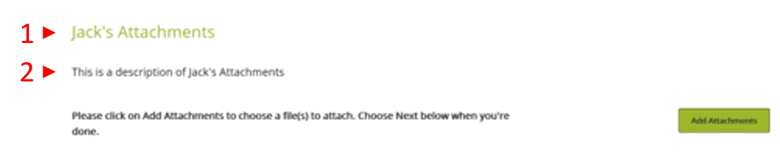
The Title appears at the top of the screen (shown below as '1') and the Description is the informational text displayed to the signer (shown below as '2').
<Data>

  <!-- ... Form elements ... -->

  <UserAttachments>

    <!-- Required. If more than one signer will be prompted to add attachments, use a different value for each. -->
    <RefID>ATT01</RefID>
    <MemberInfoNumber>1</MemberInfoNumber>

    <!-- Optional, but recommended. Title at the top of the screen (marked 1 in the screenshot). -->
    <Title>Jack's Attachments</Title>

    <!-- Optional, but recommended. Informational text shown to the signer about the requested
         attachments (marked 2 in the screenshot). -->
    <Description>This is a description of Jack's Attachments</Description>

    <FileSet>

      <!-- Required. Must the signer add an attachment to sign? '1' = mandatory, '0' = optional. -->
      <Min>1</Min>

      <!-- Required. If more than one document may be needed, choose the maximum allowed. Otherwise '1'. -->
      <Max>2</Max>

      <!-- Required. 'yes' lets the signer sign without attaching. Otherwise 'no'. -->
      <AcceptFewerThanMin>no</AcceptFewerThanMin>

      <!-- Optional, but recommended. Message shown if the signer does not attach all required documents. -->
      <FewerThanMinChallenge>You have to attach something</FewerThanMinChallenge>

      <!-- Required. Choose the types your company can store, from this SIGNiX-compatible set:
           PDF, JPG, JPEG, DOC, DOCX, XLS, XLSX, TIF, TIFF. -->
      <AcceptableTypes>PDF,JPG</AcceptableTypes>

      <!-- Required. 'Primary' lets the user capture pictures or scans on a mobile device at the
           time of attachment. -->
      <CapturePriority>Primary</CapturePriority>

    </FileSet>

  </UserAttachments>

</Data>Released in November 2024, the Digital Billboard feature lets you use the screen space shown to the signer after they complete the signing process, on the Thank You for Signing page. You can specify a unique image to show to each individual signer, a separate hover image, alt text, and a link that opens in a new tab when the signer clicks it. You can also control whether the image appears above or below the text on the screen, and the relative width of the image on the page. This could be a call-to-action to link to a promotion, another company, your own portal or other resources available to the signer.
Use the elements below, placed at the end of any signer's MemberInfo section.
<MemberInfo>

  <!-- ... other MemberInfo elements ... -->

  <PostSignatureImageLink>
    <ImageURL>YOUR_IMAGE_URL</ImageURL> <!-- Required. URL of the image to display to the signer -->
    <TargetURL>YOUR_TARGET_URL</TargetURL> <!-- Required. Link that opens in a new tab when the signer clicks the image -->
    <ImageAltText>Post Signature Image Link</ImageAltText> <!-- Required. Alt text shown to the signer -->
    <ImageHoverURL>YOUR_HOVER_IMAGE_URL</ImageHoverURL> <!-- Optional. Image shown when the signer hovers over the image -->
    <IsImageLocationAboveText>yes</IsImageLocationAboveText> <!-- Required. Whether the image is displayed above the 'Thank you' text on the page -->
    <ImageHeight>1</ImageHeight> <!-- Optional, but required if ImageWidth is used. An integer is required, but it is NOT used to size the image, which is why this example uses 1. Aspect ratio is always maintained -->
    <ImageWidth>250</ImageWidth> <!-- Optional. Width in pixels. Aspect ratio is always maintained when the image is made larger or smaller -->
  </PostSignatureImageLink>

</MemberInfo>An annotated example of the response XML follows. See Status Codes on the main API page for the possible values and meanings of the StatusCode and StatusDesc elements.
Handle the response in this order:
StatusCode.StatusCode is 0 before reading anything else. Log StatusDesc on failure, and never log the CustInfo credentials.DocumentSetID. DownloadDocument, ConfirmDownload, GetAccessLink and SubmitAjax all use it. Also keep your own TransactionID.PickupLink is returned, call GetAccessLink for the first party.<?xml version="1.0" ?>
<SubmitDocumentRs xmlns="urn:com:signix:schema:sdddc-1-1">
<Status> <!-- Occurs once only -->
<StatusCode>0</StatusCode> <!-- One of the numeric SC_* values -->
<StatusDesc>success</StatusDesc> <!-- Human-readable version of StatusCode -->
</Status>
<Data>
<!-- The SIGNiX identifier for the transaction. -->
<DocumentSetID>-5cb1ea45:119ddcc67bb:-7ad7-hkq0ep</DocumentSetID>
<!-- Pickup token. Present when a PickupLink is present. Length 22 characters. -->
<PickupToken>IeCAsVBUv0ImkEStJuyDPd</PickupToken>
<!-- Pickup link for the first party. -->
<PickupLink>https://webtest.signix.biz/enter.jsp?m=102&i=IeCA...yDPd</PickupLink>
</Data>
</SubmitDocumentRs>When creating and sending a transaction via SIGNiX, it is important to be aware of certain file size and document limitations. These limits are in place to ensure a good signer experience and to ensure smooth operation of various API flows.
Transactions are limited to a maximum of 99 unique documents and 99 parties, though SIGNiX recommends no more than 50-75 of each per transaction for the best results.
Each document in a transaction is also governed by file size limitations. In general, each document is limited to 10 MB, though customers can discuss with SIGNiX provisions to expand that size up to 25 MB in certain use cases. SIGNiX recommends file sizes no larger than 5 MB.
Documents generated from a scanner before being sent through SIGNiX should be reviewed carefully for optimization (dpi, images, etc.) to reduce file size and improve rendering for the signer.
If the CC function or DistributionEmailList is used, SIGNiX cannot guarantee delivery by email of completed documents to those recipients if the documents are larger than 5 MB.


1110 Market Street, Suite 402
Chattanooga, TN 37402
877.890.5350
info@SIGNiX.com
©2016 SIGNiX. All Rights Reserved.