← FlexAPI Documentation / Reference / Text Tagging
Text tagging lets you place signatures, initials, dates and other fields by pointing at text that is already in your PDF. SIGNiX finds the anchor text and places the task relative to it, so you do not need PDF form fields or page coordinates.
Text tags are the right choice when your documents are dynamic, when you are migrating from an e-signature product that already uses text anchors, or when you cannot manipulate the PDF structure. To compare all three approaches, see Choosing a tagging approach on the SubmitDocument page.
SignatureLine elements or fixed positioning on the same Form.TextTagField before any TextTagSignature in the Form.TextTagField with a TagName, then name it in the signature's DateSignedTagName.Type, not FieldType. Values are case-sensitive: DateSigned, TextField, checkbox, NotarySeal, and initial on a signature.MemberInfoNumber goes only on the signature. Adding it to a TextTagField is a schema error.Any text in the document can be called out as a text tag. The text becomes the anchor for a small coordinate system, similar to the one other e-signature platforms use. The lower-left corner of the anchor text is the origin of the X and Y offsets, and positive values move to the right and down from that point. You then give the width and height of the field. All values are in 1/72 inch points.
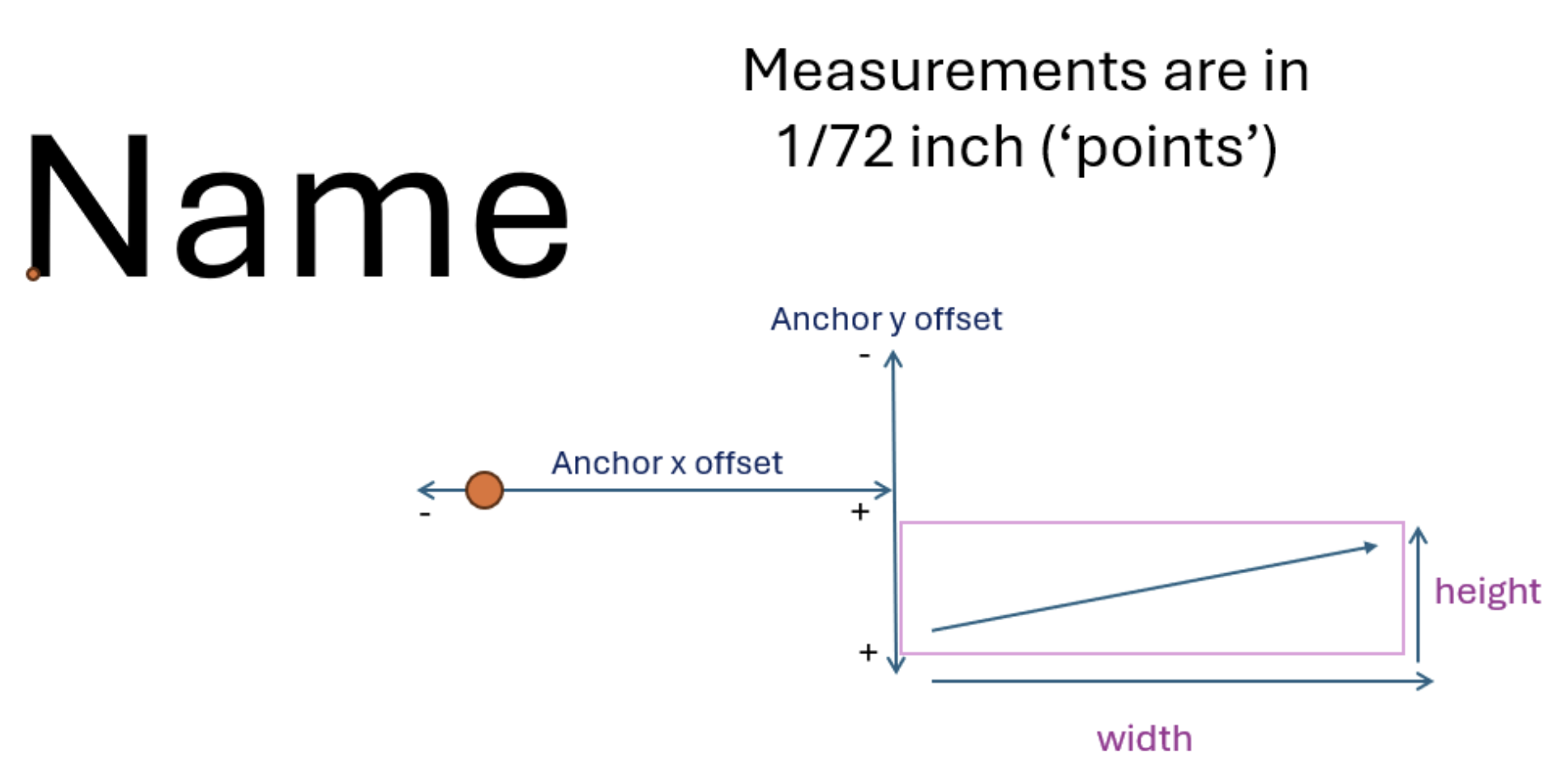
For each tag you provide the elements below. Fields that are not signatures or initials use TextTagField.
| Element | Meaning |
|---|---|
Type | The kind of field being placed. |
AnchorText | The words or characters SIGNiX looks for in the document to place the field. |
AnchorXOffset, AnchorYOffset | Distance from the anchor text, in 1/72 inch, as shown in the diagram. |
Width, Height | Size of the field, in 1/72 inch. |
IsRequired | Whether the field is mandatory or optional. |
TagName | An internal name that other elements in the same SubmitDocument call can reference, such as a signature that picks up a date field. |
An annotated TextTagField follows.
<TextTagField> <!-- Repeat once for each field. -->

  <!-- Mandatory. The kind of field: DateSigned, TextField, checkbox or NotarySeal. Values are
       case-sensitive. The element is Type, not FieldType. -->
  <Type>TextField</Type>

  <!-- Mandatory. The text SIGNiX searches for. Use unique, explicit marker text. -->
  <AnchorText>%name1%</AnchorText>

  <!-- Mandatory. Offsets from the lower-left corner of the anchor text, in 1/72 inch. Positive
       X moves right and positive Y moves down. -->
  <AnchorXOffset>0</AnchorXOffset>
  <AnchorYOffset>22</AnchorYOffset>

  <!-- Mandatory. Size of the field, in 1/72 inch. Allow enough room for its content. -->
  <Width>120</Width>
  <Height>20</Height>

  <!-- Mandatory. yes if the signer must complete the field. -->
  <IsRequired>yes</IsRequired>

  <!-- Mandatory. Internal name that other elements in this call can reference. -->
  <TagName>EditableField1</TagName>

</TextTagField>Text tags are children of the Form element in SubmitDocument, alongside RefID, Desc, FileName and MimeType. Place the tagging elements after MimeType and before Length and Data. MimeType is always application/pdf.
Within the tagging elements, list every TextTagField first and every TextTagSignature after them. The skeleton below shows the order.
<Form>
  <RefID>YOUR_REF_ID</RefID>
  <Desc>YOUR_DOCUMENT_DESCRIPTION</Desc>
  <FileName>YOUR_FILE_NAME.pdf</FileName>
  <MimeType>application/pdf</MimeType>

  <!-- 1. All TextTagField elements first (dates, text fields, checkboxes, notary seals). -->
  <TextTagField> ... </TextTagField>

  <!-- 2. Then all TextTagSignature elements (signatures and initials). -->
  <TextTagSignature> ... </TextTagSignature>

  <Length>PDF_BYTE_LENGTH</Length>
  <Data>BASE64_PDF</Data>
</Form>A TextTagSignature places a signature task for one signer. MemberInfoNumber identifies the signer, matching the MemberInfo order in the SubmitDocument request. To stamp the signing date next to the signature, first declare the date as a TextTagField of Type DateSigned with a unique TagName, then reference that name in the signature's DateSignedTagName. The TagName for a date attached to a signature must be unique within the call.
Optional elements on a signature: DateSignedFormat, NotarySealTagName and EditableFieldTagName. EditableFieldTagName may be repeated, and each one links a text field or checkbox so the signer completes it as part of signing.
<!-- Date field, declared first. -->
<TextTagField>
  <Type>DateSigned</Type>
  <AnchorText>%date1%</AnchorText>
  <AnchorXOffset>0</AnchorXOffset>
  <AnchorYOffset>0</AnchorYOffset>
  <Width>80</Width>
  <Height>20</Height>
  <IsRequired>yes</IsRequired>
  <TagName>DateField1</TagName>
</TextTagField>

<!-- Signature for signer 1, picking up the date field above. Any unique text works as the anchor. -->
<TextTagSignature>
  <MemberInfoNumber>1</MemberInfoNumber>
  <AnchorText>%sig1%</AnchorText>
  <AnchorXOffset>0</AnchorXOffset>
  <AnchorYOffset>0</AnchorYOffset>
  <Width>144</Width>
  <Height>36</Height>
  <IsRequired>yes</IsRequired>
  <DateSignedTagName>DateField1</DateSignedTagName>
  <DateSignedFormat>MM/dd/yy</DateSignedFormat>
</TextTagSignature>
Initials use TextTagSignature with Type set to initial. Without it the element is a full signature. Initials are typically smaller than signatures, so define a standard size, such as 35 x 30, and reuse it.
<TextTagSignature>
  <MemberInfoNumber>1</MemberInfoNumber>
  <Type>initial</Type>
  <AnchorText>%init1%</AnchorText>
  <AnchorXOffset>0</AnchorXOffset>
  <AnchorYOffset>0</AnchorYOffset>
  <Width>35</Width>
  <Height>30</Height>
  <IsRequired>yes</IsRequired>
</TextTagSignature>Text fields and checkboxes are TextTagField elements with Type of TextField or checkbox (lowercase). Link them to a signature with EditableFieldTagName so they are completed during signing. A notary seal is a TextTagField with Type NotarySeal and a TagName, which the notary's signature references with NotarySealTagName.
<!-- Text field and checkbox. Link each one to a signature with EditableFieldTagName. -->
<TextTagField>
  <Type>TextField</Type>
  <AnchorText>%name1%</AnchorText>
  <AnchorXOffset>0</AnchorXOffset>
  <AnchorYOffset>22</AnchorYOffset>
  <Width>120</Width>
  <Height>20</Height>
  <IsRequired>yes</IsRequired>
  <TagName>EditableField1</TagName>
</TextTagField>

<TextTagField>
  <Type>checkbox</Type>
  <AnchorText>%check1%</AnchorText>
  <AnchorXOffset>0</AnchorXOffset>
  <AnchorYOffset>0</AnchorYOffset>
  <Width>10</Width>
  <Height>10</Height>
  <IsRequired>no</IsRequired>
  <TagName>Checkbox1</TagName>
</TextTagField><!-- Notary seal field, then the notary's signature referencing it. -->
<TextTagField>
<Type>NotarySeal</Type>
<AnchorText>%seal1%</AnchorText>
<AnchorXOffset>0</AnchorXOffset>
<AnchorYOffset>0</AnchorYOffset>
<Width>100</Width>
<Height>60</Height>
<IsRequired>yes</IsRequired>
<TagName>NotarySeal1</TagName>
</TextTagField>
<TextTagSignature>
<MemberInfoNumber>2</MemberInfoNumber>
<AnchorText>%notarysig%</AnchorText>
<AnchorXOffset>0</AnchorXOffset>
<AnchorYOffset>0</AnchorYOffset>
<Width>144</Width>
<Height>36</Height>
<IsRequired>yes</IsRequired>
<NotarySealTagName>NotarySeal1</NotarySealTagName>
</TextTagSignature>This Form has two signers. Both fields come first, then both signatures. Signer 1's signature also collects the text field through EditableFieldTagName.
<Form>
  <RefID>YOUR_REF_ID</RefID>
  <Desc>YOUR_DOCUMENT_DESCRIPTION</Desc>
  <FileName>YOUR_FILE_NAME.pdf</FileName>
  <MimeType>application/pdf</MimeType>

  <!-- Fields first. -->
  <TextTagField>
    <Type>DateSigned</Type>
    <AnchorText>%date1%</AnchorText>
    <AnchorXOffset>0</AnchorXOffset>
    <AnchorYOffset>0</AnchorYOffset>
    <Width>80</Width>
    <Height>20</Height>
    <IsRequired>yes</IsRequired>
    <TagName>DateField1</TagName>
  </TextTagField>
  <TextTagField>
    <Type>DateSigned</Type>
    <AnchorText>%date2%</AnchorText>
    <AnchorXOffset>0</AnchorXOffset>
    <AnchorYOffset>0</AnchorYOffset>
    <Width>80</Width>
    <Height>20</Height>
    <IsRequired>yes</IsRequired>
    <TagName>DateField2</TagName>
  </TextTagField>
  <TextTagField>
    <Type>TextField</Type>
    <AnchorText>%name1%</AnchorText>
    <AnchorXOffset>0</AnchorXOffset>
    <AnchorYOffset>22</AnchorYOffset>
    <Width>120</Width>
    <Height>20</Height>
    <IsRequired>yes</IsRequired>
    <TagName>EditableField1</TagName>
  </TextTagField>

  <!-- Then signatures. -->
  <TextTagSignature>
    <MemberInfoNumber>1</MemberInfoNumber>
    <AnchorText>%sig1%</AnchorText>
    <AnchorXOffset>0</AnchorXOffset>
    <AnchorYOffset>0</AnchorYOffset>
    <Width>144</Width>
    <Height>36</Height>
    <IsRequired>yes</IsRequired>
    <DateSignedTagName>DateField1</DateSignedTagName>
    <DateSignedFormat>MM/dd/yy</DateSignedFormat>
    <EditableFieldTagName>EditableField1</EditableFieldTagName>
  </TextTagSignature>
  <TextTagSignature>
    <MemberInfoNumber>2</MemberInfoNumber>
    <AnchorText>%sig2%</AnchorText>
    <AnchorXOffset>0</AnchorXOffset>
    <AnchorYOffset>0</AnchorYOffset>
    <Width>144</Width>
    <Height>36</Height>
    <IsRequired>yes</IsRequired>
    <DateSignedTagName>DateField2</DateSignedTagName>
    <DateSignedFormat>MM/dd/yy</DateSignedFormat>
  </TextTagSignature>

  <Length>PDF_BYTE_LENGTH</Length>
  <Data>BASE64_PDF</Data>
</Form>%sig1%. Avoid ordinary sentence text that may appear more than once.

1110 Market Street, Suite 402
Chattanooga, TN 37402
877.890.5350
info@SIGNiX.com
©2016 SIGNiX. All Rights Reserved.